Showing posts with label Google Maps API. Show all posts
Showing posts with label Google Maps API. Show all posts
Wednesday, July 13, 2011
Secrets and surprises of the Google Geo APIs
Come learn about some new, some hidden, and some surprising features of the Maps API, Earth API, Fusion Tables and other APIs you may not even realise exist.

Friday, July 8, 2011
Tracking my location on mobile web with Google Map
In the post Get repeated position updates using Geolocation API, navigator.geolocation.watchPosition(), we know how to track our location using Geolocation API. In the post Mobile web with Google Map, we know how to embed Google Map in our mobile web page. Now, it's time to merge them together to have a Google Map tracking our location using Geolocation API.

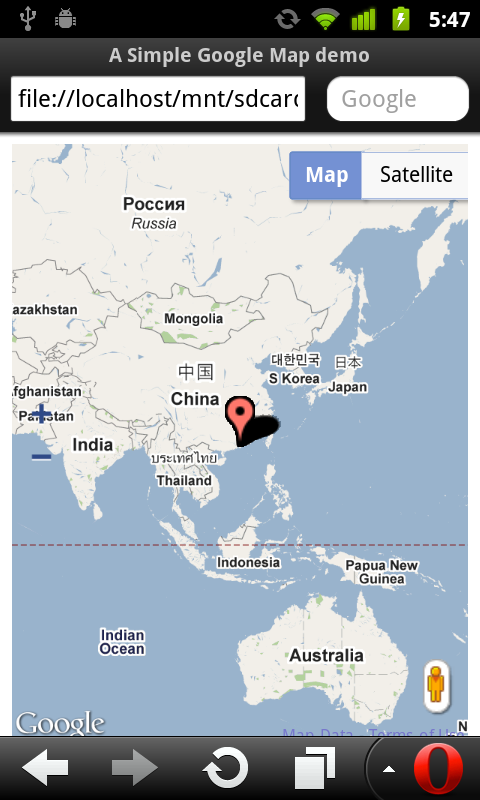
<!DOCTYPE html>
<html>
<head>
<meta name="viewport" content="initial-scale=1.0, user-scalable=no"/>
<title>A Simple Google Map demo</title>
<style type="text/css">
html { height: 100% }
body { height: 100%}
#mymap { height: 100% }
</style>
<script type="text/javascript" src="http://maps.google.com/maps/api/js?sensor=true"></script>
<script type="text/javascript">
var map;

function InitMap(){
 var options = {
   zoom: 2,
   center: new google.maps.LatLng(0, 0),
   mapTypeId: google.maps.MapTypeId.ROADMAP,

   zoomControl: true,
   zoomControlOptions: {
    style: google.maps.ZoomControlStyle.LARGE,
    position: google.maps.ControlPosition.LEFT_CENTER},

   streetViewControl: true,
   streetViewControlOptions: {
    position: google.maps.ControlPosition.RIGHT_BOTTOM}


 };

 map = new google.maps.Map(document.getElementById("mymap"), options);

 initLocation();
}

function initLocation(){
 if (window.navigator.geolocation) {
  navigator.geolocation.watchPosition(successCallback, errorCallback);
 } else {
  alert("Sorry! your browser does not support Geolocation API.");
 }
}

function successCallback(position){
 var currentPosition = new google.maps.LatLng(position.coords.latitude, position.coords.longitude);
 var marker = new google.maps.Marker({position: currentPosition});
 marker.setMap(map);
 map.setCenter(currentPosition);
}

function errorCallback(error) {
}

function htmlonload(){
  InitMap();
}
</script>
</head>
<body onload="htmlonload();">
<div id="mymap"></div>
</body>
</html>
Wednesday, July 6, 2011
Mobile web with Google Map
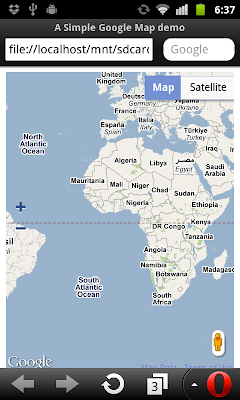
Modify the HTML in last post Add custom control on Google Map with "viewport" added, to make it suitable for mobile device.
The HTML displayed on PC, Google Chrome.

The HTML displayed on Android, Mobile Opera.
Next:
- Tracking my location on mobile web with Google Map
The HTML displayed on PC, Google Chrome.

The HTML displayed on Android, Mobile Opera.

<!DOCTYPE html>
<html>
<head>
<meta name="viewport" content="initial-scale=1.0, user-scalable=no"/>
<title>A Simple Google Map demo</title>
<style type="text/css">
 html { height: 100% }
 body { height: 100%}
 #mymap { height: 100% }
</style>
<script type="text/javascript" src="http://maps.google.com/maps/api/js?sensor=false"></script>
<script type="text/javascript">
 var map;

 function InitMap(){
  var options = {
    zoom: 2,
    center: new google.maps.LatLng(0, 0),
    mapTypeId: google.maps.MapTypeId.ROADMAP,

    zoomControl: true,
    zoomControlOptions: {
     style: google.maps.ZoomControlStyle.LARGE,
     position: google.maps.ControlPosition.LEFT_CENTER},

    streetViewControl: true,
    streetViewControlOptions: {
     position: google.maps.ControlPosition.RIGHT_BOTTOM}


  };

  map = new google.maps.Map(document.getElementById("mymap"), options);
 }

 function htmlonload(){
   InitMap();
 }
</script>
</head>
<body onload="htmlonload();">
 <div id="mymap"></div>
</body>
</html>
Next:
- Tracking my location on mobile web with Google Map
Tuesday, July 5, 2011
Add custom control on Google Map
Modify from the example code in A Simple Google Map demo, custom control of zoomControl and streetViewControl are added in Google Map.

next:
- Mobile web with Google Map

<!DOCTYPE html>
<html>
<head>
<title>A Simple Google Map demo</title>
<style type="text/css">
 html { height: 100% }
 body { height: 100%}
 #mymap { height: 50% }
</style>
<script type="text/javascript" src="http://maps.google.com/maps/api/js?sensor=false"></script>
<script type="text/javascript">
 var map;

 function InitMap(){
  var options = {
    zoom: 2,
    center: new google.maps.LatLng(0, 0),
    mapTypeId: google.maps.MapTypeId.ROADMAP,

    zoomControl: true,
    zoomControlOptions: {
     style: google.maps.ZoomControlStyle.LARGE,
     position: google.maps.ControlPosition.LEFT_CENTER},

    streetViewControl: true,
    streetViewControlOptions: {
     position: google.maps.ControlPosition.RIGHT_BOTTOM}


  };

  map = new google.maps.Map(document.getElementById("mymap"), options);
 }

 function htmlonload(){
   InitMap();
 }
</script>
</head>
<body onload="htmlonload();">
 <h1>A Simple Google Map demo</h1>
 <div id="mymap"></div>
</body>
</html>
next:
- Mobile web with Google Map
Sunday, July 3, 2011
A Simple Google Map demo
The Google Maps API is a service available for any web site that is free to consumers.
See the terms of service for more information.
Currently, The Maps API is a free service, businesses that charge fees for access, track assets or build internal applications must use Google Maps API Premier, which provides enhanced features, technical support and a service-level agreement.
It's a very simple example to embed Google Maps in HTML using JavaScript:

next:
- Add custom control on Google Map
See the terms of service for more information.
Currently, The Maps API is a free service, businesses that charge fees for access, track assets or build internal applications must use Google Maps API Premier, which provides enhanced features, technical support and a service-level agreement.
It's a very simple example to embed Google Maps in HTML using JavaScript:
<!DOCTYPE html>
<html>
<head>
<title>A Simple Google Map demo</title>
<style type="text/css">
html { height: 100% }
body { height: 100%}
#mymap { height: 50% }
</style>
<script type="text/javascript" src="http://maps.google.com/maps/api/js?sensor=false"></script>
<script type="text/javascript">
var map;

function InitMap(){
 var options = {
   zoom: 2,
   center: new google.maps.LatLng(0, 0),
   mapTypeId: google.maps.MapTypeId.ROADMAP,
 };

 map = new google.maps.Map(document.getElementById("mymap"), options);
}

function htmlonload(){
  InitMap();
}
</script>
</head>
<body onload="htmlonload();">
<h1>A Simple Google Map demo</h1>
<div id="mymap"></div>
</body>
</html>

next:
- Add custom control on Google Map
Subscribe to:
Posts (Atom)